Team and numbers
8 min read
·
Updated
Plan a setup for multiple numbers, sales teams and branches, with handovers and setup checks.
Nafih C
Product team, FlowFlex
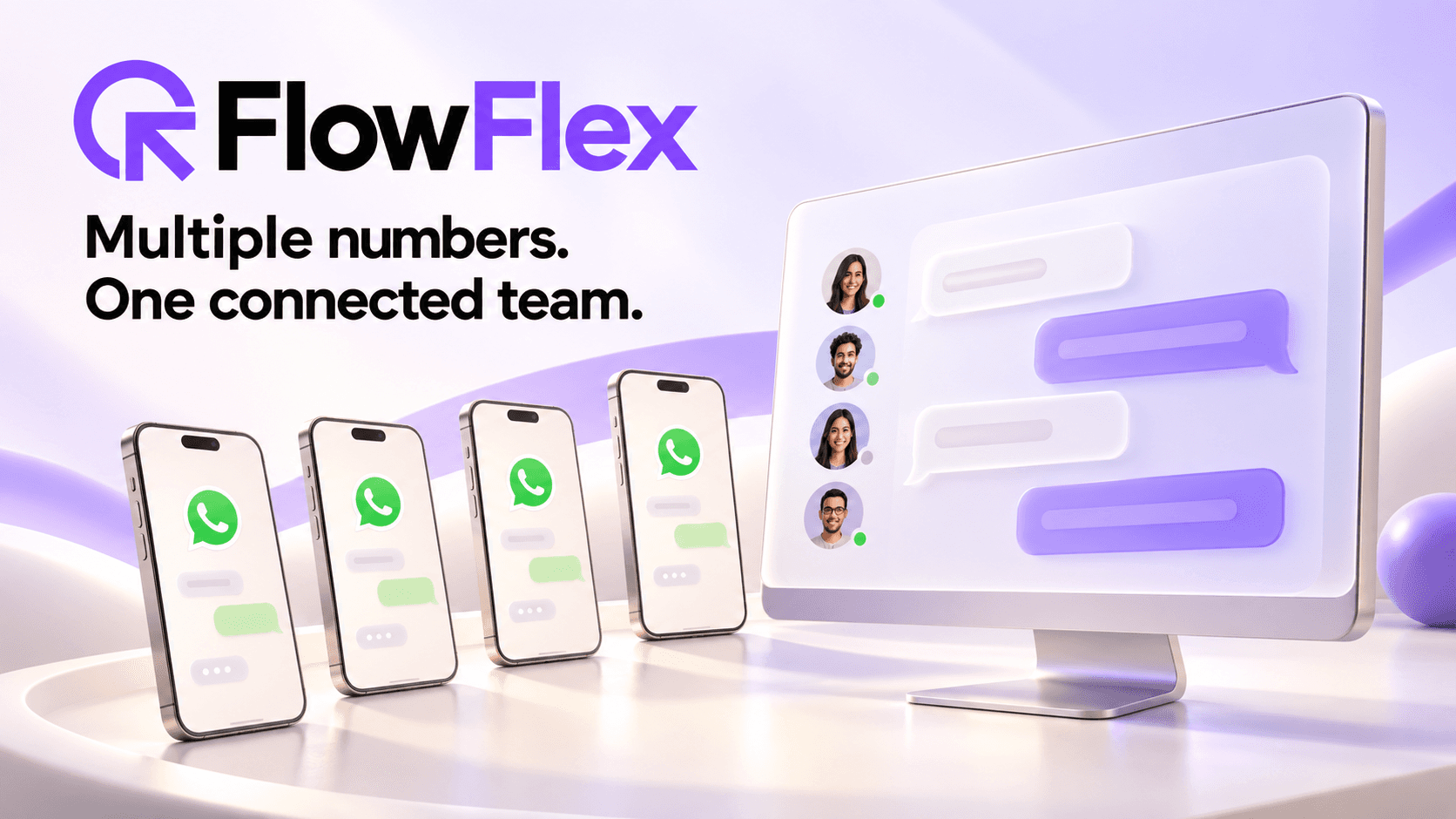
Choose the right WhatsApp number setup
You do not need a separate number simply because you have another salesperson.
One company number can work well when the same team handles incoming enquiries. Separate numbers can make sense when branches serve different locations or customers already know a particular number.
Before making changes, list:
Every WhatsApp number customers contact.
Whether the business controls that number.
Who normally answers it.
Who covers when that person is unavailable.
This gives you a clear starting point for discussing your FlowFlex setup. It also reveals numbers that depend entirely on one employee.
A customer conversation should always have someone responsible for the next step.
FlowFlex provides a shared inbox with agent assignment, tags, and filters by status or agent. These features help teams organize their conversations. Explore FlowFlex’s conversation features.
Build a simple routine around them:
Assign the enquiry to a salesperson.
Record the next action in your agreed tracker.
Review unfinished enquiries each day.
Make ownership clear whenever someone takes over.
For example, a useful handover might say:
“The customer needs 20 units. The quotation has been sent. Confirm availability and call them tomorrow morning.”
That gives the next person something specific to do.
For a business with three branches, decide what each employee and manager needs to access.
A branch employee may need local conversations. The owner may need visibility across the business. Test those requirements using actual employee and manager logins before inviting the whole team.
Prepare for staff departures too. Reassign active enquiries, record outstanding commitments, and remove access at the appropriate time.
Keep control of important customer-facing numbers with the business. Connecting an employee’s personal number to software does not transfer ownership of that number.
Your team may already use Zoho, LeadRack, or Google Sheets. Start by identifying what information needs to move between those tools and WhatsApp.
For example:
Should an enquiry create a new lead?
Where will the assigned salesperson be recorded?
Where will the team track the next follow-up?
Which system should hold the latest customer details?
FlowFlex lists a Google Sheets integration for customer data and campaign results. Specific CRM connections and the information they exchange need to be confirmed for your workflow. See FlowFlex integrations.
Test one sample enquiry from arrival through follow-up. Check whether the team can complete the process without losing information or entering everything twice.
A small pilot helps you check how the proposed setup works in practice.
Agree with FlowFlex which number to use and what the pilot should demonstrate. Include a new enquiry, an assignment, a follow-up, and a handover.
Before connecting existing sales numbers, establish what happens to previous conversations and whether the current WhatsApp Business app can remain in use.
A successful test with a new number shows how the workflow operates. Existing-number onboarding and chat-history transfer still need their own checks.
Count your requirements separately: WhatsApp numbers, employees, branches, and expected messaging.
FlowFlex’s pricing distinguishes users, branches, and WhatsApp channels. A business with four numbers and eight employees should have both requirements included in its estimate. Review FlowFlex plans.
Request a breakdown that covers the subscription, any additional capacity, messaging charges, and required integration work.
Managing salespeople and WhatsApp numbers
1. We have four salespeople using different WhatsApp numbers. Can we manage all their conversations in FlowFlex?
FlowFlex offers a shared inbox and lists additional WhatsApp channels in its plans. Have all four numbers checked for connection eligibility and confirm the required plan before moving the team. FlowFlex channel options.
2. Should we keep separate numbers for each salesperson or use one company number with FlowFlex?
Use one company number when your team shares incoming enquiries. Keep separate numbers when they serve established customer relationships or distinct branches. Consider who will cover each number during absences and who controls it when an employee leaves.
3. Can we connect the existing WhatsApp numbers our customers already know?
Existing WhatsApp Business app numbers may qualify for Meta’s Coexistence setup, which allows the app and Business Platform to work together. FlowFlex needs to confirm whether it supports that route for your numbers before you make changes. Meta’s Coexistence guidance.
4. Can the business owner see customer conversations across all connected sales numbers?
FlowFlex provides shared conversation visibility. During setup, check exactly which connected numbers the owner can view and how branch or employee permissions affect that access. FlowFlex conversation management.
5. When a salesperson leaves, how can we keep their customer conversations and pending leads with the business?
Maintain business control of the number and account administration. Before the employee leaves, transfer responsibility for active enquiries, record customer commitments, and review access. If customers use an employee-owned number, agree on a transition to a business-controlled contact point.
6. Can another salesperson take over a customer conversation without asking the customer to explain everything again?
Give the incoming salesperson access to the relevant conversation and a short handover covering the customer’s request, what has been promised, and the next action. Test this during your pilot, including whether the necessary conversation history is available.
Managing branches and follow-ups
7. We have three branches. Can we manage all their WhatsApp numbers under one FlowFlex account?
FlowFlex lists plans with multiple branches. Match your three branches, their WhatsApp numbers, and employee accounts to the appropriate plan. Have that arrangement demonstrated before onboarding everyone. FlowFlex branch allowances.
8. Can employees access only their branch’s conversations while the owner can see every branch?
Branch-specific visibility needs confirmation for your FlowFlex setup. Test a branch employee’s login and the owner’s login separately. Check which conversations each person can view, reply to, reassign, and export.
9. How can FlowFlex help us follow up with leads coming from our advertisements?
Use agent assignment and tags to organize incoming enquiries, then give each lead a next action in your agreed tracker. If you need automatic follow-ups or advertising-source tracking, include those requirements in the setup demonstration. FlowFlex conversation tools.
10. Can we see which enquiries still need a reply and which salesperson is responsible?
FlowFlex supports filtering conversations by status or agent. Agree on how your team uses those statuses, then review unfinished conversations daily. Keep scheduled follow-up dates in the tracker your team has chosen. FlowFlex filtering features.
Working with existing tools
11. We already use Zoho CRM. Can FlowFlex connect our WhatsApp enquiries with our CRM leads?
Confirm the supported Zoho connection with FlowFlex before relying on automatic syncing. Specify what you need: creating leads, updating salesperson assignments, saving conversation records, or changing lead status. Test that exact workflow with a sample customer.
12. Can FlowFlex work with LeadRack, or would we need to change our current sales process?
Have your LeadRack workflow reviewed before deciding to replace anything. Show where contact details are kept and which updates should pass between LeadRack and FlowFlex. The available connection and any setup work need confirmation.
13. We track customers and monthly follow-ups in Google Sheets. Can we continue using those sheets with FlowFlex?
FlowFlex lists a Google Sheets integration for customer data and campaign results. Check whether it supports the columns and updates used in your existing follow-up sheet before making that sheet part of the connected workflow. FlowFlex’s Google Sheets integration.
Moving to FlowFlex
14. Can we test FlowFlex with a separate WhatsApp number before connecting our existing sales numbers?
A separate-number pilot is a useful approach to discuss with FlowFlex. Agree on number eligibility, trial access, and the tasks to test. Use it to evaluate everyday teamwork while separately checking the migration requirements for your existing numbers.
15. What happens to our old customer chats when we connect an existing number to FlowFlex?
With supported Coexistence onboarding, Meta allows sharing individual messages from the previous 180 days, with your permission. Group chats are excluded. FlowFlex must confirm whether its setup imports that history and what messages or media its inbox will display. Meta’s chat-history guidance.
16. What business documents and verification steps are required to connect our numbers?
Prepare your legal business name, address, phone number, and website. Meta may request supporting documents, such as a business licence or incorporation documents. Standard phone-number setup separately verifies ownership through an SMS or voice code. Meta business verification, phone-number verification.
17. Can we start using FlowFlex while our business verification is still pending?
You can prepare assignments, replies, and handover procedures while the review continues. Live messaging depends on your number’s connection status and the limits available to your account. Have those checked before moving customer traffic or starting a campaign. Meta’s phone-number status guidance, messaging limits.
Understanding the cost
18. How much would FlowFlex cost for four WhatsApp numbers and a team of salespeople?
Request an estimate covering four numbers, the total employees needing access, your branches, and expected messaging. Users and WhatsApp channels are counted separately, so the number of salespeople alone will not determine the complete cost. FlowFlex pricing.
19. If we add another branch or WhatsApp number later, what additional charges should we expect?
Check your plan’s included allowances and the charges for additional branches, users, and WhatsApp channels. Ask for the cost of your likely next expansion when reviewing the initial quote. FlowFlex plan comparison.
20. What does the FlowFlex subscription include, and which WhatsApp messaging charges or credits do we pay for separately?
Have your quote distinguish software access from messaging charges and explain any included credits. Meta’s messaging rates depend on the recipient’s market and message category, with applicable charges based on delivery. Confirm how those charges appear in your FlowFlex billing. WhatsApp Platform pricing.
Bring your number list, team size, branch structure, and current CRM to a FlowFlex demo. Walk through a real enquiry, a follow-up, and a staff handover.
That gives you a practical way to check whether the proposed setup fits how your business works.
Free tools
WhatsApp link and QR generator
Make a wa.me link with your message already typed, a QR code to print and a chat button for your website. Free, no sign-up, and nothing you type leaves your browser.


