Setup and API

Nafih C
Product team, FlowFlex
Updated
8 min read

A coffee shop we onboarded had everything ready for WhatsApp except one step: Meta business verification. Its CR, VAT certificate and national address all had to line up with what it had typed into Meta’s Business Manager. Another client’s verification stalled because the Business Manager was set to Arabic and the staff member doing it did not have full admin access.
Meta business verification is where most GCC businesses lose days when moving to the WhatsApp Business API. This checklist covers what verification is, which documents work for companies in the UAE, Saudi Arabia, Qatar, Kuwait, Bahrain and Oman, the exact steps, and the mistakes that get applications rejected.
Quick answer: how do you verify a GCC business with Meta?
Enter your legal business name, address, phone number and website in Meta Business Manager exactly as they appear on your CR or trade licence. Then open Security Center, start verification, and upload two things: a document proving your legal name, such as your CR or trade licence, and a document showing that name with your address or phone number, such as a VAT certificate or utility bill. Meta reviews it within up to 14 business days. Most rejections come from details that do not match.
Business verification is Meta confirming that your business portfolio belongs to a real, registered company. You can start on the WhatsApp Business API without it, but an unverified business stays small:
Messaging limit: new businesses can start conversations with 250 people a day. Verification is one of three ways to move up to 2,000, and from there the limit keeps growing.
Number of WhatsApp numbers: an unverified portfolio can register two numbers. Verification raises the cap to 20.
Your name in chats: verified businesses can show their approved display name to customers, rather than only a phone number.
Verification is not the same as the blue tick. The blue badge comes from Meta Verified, a separate paid subscription. Business verification is free and proves your company exists; it does not add a badge to your profile.
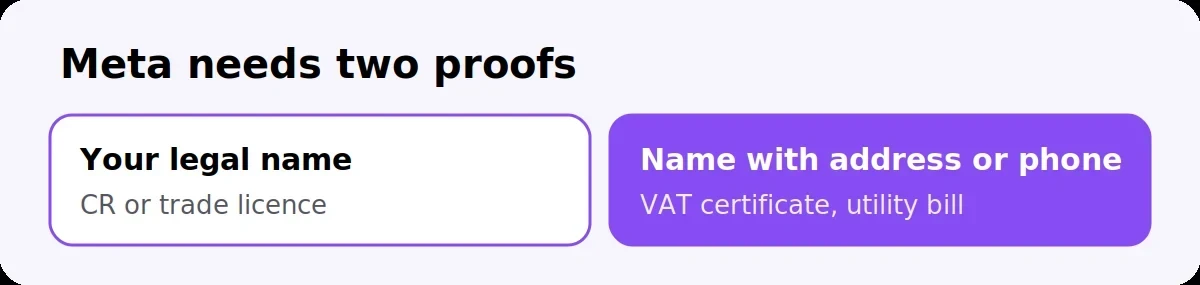
Meta asks for two kinds of document: one that proves your legal business name, and one that shows that name together with your address or phone number. The same document can do both if it shows all three. Meta’s accepted types include business licences, certificates of incorporation or registration, and VAT registration certificates, plus utility bills or bank statements for the address.
In the GCC, that usually means:
Country | To prove your legal name | To prove your address or phone |
|---|---|---|
UAE | Trade licence (mainland or free zone) or certificate of incorporation | VAT (TRN) certificate, utility bill or bank statement in the company’s name |
Saudi Arabia | Commercial Registration (CR) | VAT certificate, national address certificate, utility bill or bank statement |
Qatar | Commercial Registration (CR) | Utility bill or bank statement in the company’s name |
Kuwait | Commercial licence | Utility bill or bank statement in the company’s name |
Bahrain | Commercial Registration (CR) | VAT certificate, utility bill or bank statement |
Oman | Commercial Registration (CR) | VAT certificate, utility bill or bank statement |
Meta’s upload screen shows the accepted list for your country, so check it before you submit. A few rules apply everywhere:
Use government-issued documents. Meta does not accept tax returns you filed yourself.
Make sure nothing has expired. An expired trade licence or CR is rejected even if everything else matches.
Upload clear PDFs, not phone photos or screenshots.
Check the language. Meta asks you to choose the document’s language. If yours is not on its list, it asks for a certified English translation. Bilingual Arabic and English documents usually avoid this problem.

Set aside 20 minutes and have your documents ready as PDFs. You need full admin control of the business portfolio to start.
Fill in your business info. In Business Manager, open Business settings, then Business info. Enter the legal name, address, phone number and website exactly as they appear on your CR or trade licence, including spelling and punctuation. Put your shop or brand name in the alternative business name field if it differs.
Check your website. It should load over HTTPS and show your business name, address and phone number, ideally on a contact page.
Verify your domain (optional but faster). In Brand safety, then Domains, verify your website. An email address on that domain also speeds up the code step.
Start verification. Open Security Center and select Start verification.
Pick your business. Choose it from the list, or select None of these match if it does not appear.
Upload your documents. First the legal name document, then the address or phone document.
Confirm a code. Meta sends a code by email, SMS or phone call, or you can confirm through your verified domain.
Wait and check. Review takes up to 14 business days, sometimes much less. Track the status in Security Center.
One practical tip from our onboarding calls: if your Business Manager is set to Arabic, switch it to English while you work through these steps. The menu names then match the guides your provider sends you, which avoids a lot of back and forth.
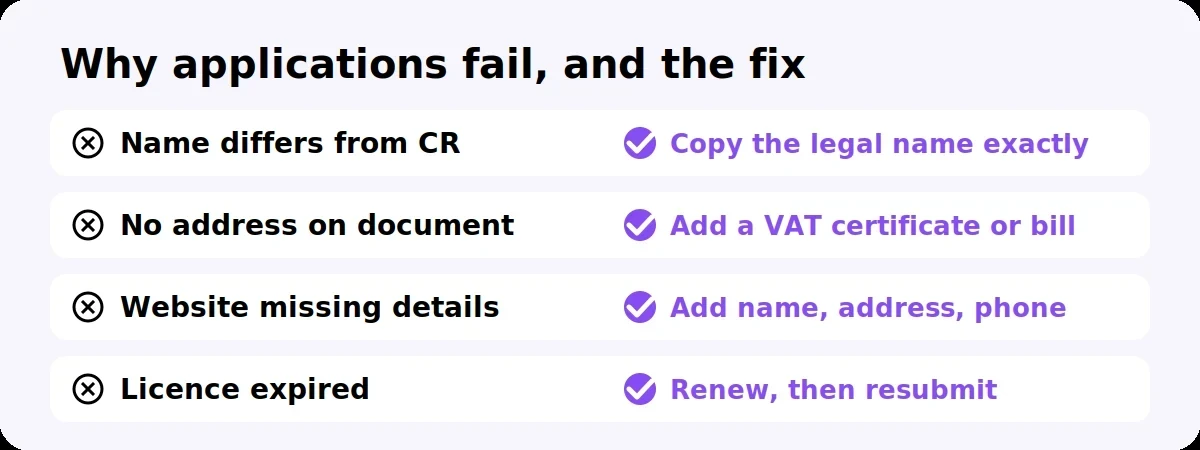
Almost always because something does not match. Meta compares your business info, your documents and your website, and a small difference is enough to fail.
Reason for rejection | How to fix it |
|---|---|
The legal name in Business Manager differs from the CR or trade licence, for example a brand name instead of the registered name | Copy the legal name exactly from the document. Put the brand name in the alternative name field |
The document shows the name but not the address or phone number | Add a second document that shows both, such as a VAT certificate or utility bill |
The address is partial or written differently | Match the address line by line, including building and area names |
The website does not show the business details, has no HTTPS, or does not exist | Add a contact page with name, address and phone, and fix the certificate |
The licence or CR has expired | Renew it, then resubmit |
The person submitting is not a full admin | Ask the portfolio owner to give them full control, or submit it themselves |
If your application is rejected, Meta emails you. Open Security Center and use the Contact option under the rejection message to ask what failed, then fix it and resubmit.
You have full admin control of the Meta business portfolio
Legal business name in Business info matches the CR or trade licence exactly
Address and phone number in Business info match your documents
Brand or shop name added as the alternative business name, if different
Website loads over HTTPS and shows your name, address and phone number
Domain verified in Business Manager (optional, but faster)
A current CR or trade licence as a clear PDF
A VAT certificate, utility bill or bank statement showing the legal name with the address or phone
Certified English translation ready if your documents are in a language Meta does not list
Access to the business email or phone number to receive the code
Do I need Meta business verification to use the WhatsApp Business API?
Not to start. Unverified businesses can use the API, but they can only start conversations with 250 people a day and register two numbers. Verification is one way to reach the 2,000 limit and raises the number cap to 20.
How long does Meta business verification take?
Meta reviews applications within up to 14 business days, and simple cases can pass much faster. Mismatched details are the most common cause of delays, because they lead to rejection and a resubmission.
Which documents work for Meta verification in the UAE?
A trade licence or certificate of incorporation proves the legal name. A VAT (TRN) certificate, utility bill or bank statement in the company’s name proves the address or phone number.
Which documents work for Meta verification in Saudi Arabia?
Your Commercial Registration (CR) proves the legal name. A VAT certificate, national address certificate, utility bill or bank statement proves the address or phone number.
Is Meta business verification the same as the blue tick?
No. Business verification is free and confirms your company is real. The blue badge comes from Meta Verified, a separate paid subscription.
Can I use Arabic documents for Meta verification?
Meta asks you to choose the language of each document. If your document’s language is not on its list, Meta asks for a certified English translation. Bilingual Arabic and English documents usually avoid the problem.
Why was my Meta business verification rejected?
Usually because the legal name, address or phone number in Business Manager does not exactly match your documents, or your website does not show your business details. Check Security Center for Meta’s message, fix the mismatch and resubmit.
FlowFlex is an official Meta Business Partner that helps businesses across the GCC get onto the WhatsApp Business API. Our team checks your business info and documents with you before you submit, so you avoid the common reasons for rejection, then handles template approval and setup.
Start your 14-day free trial or message us on WhatsApp to go through your documents with our team.
Bans and safety
Why WhatsApp Banned Your Business Number, and How to Send 10,000 Messages Without It Happening Again
Team and numbers
WhatsApp Business Web: Everything You Need to Know in 2026
Setup and API
WhatsApp Business API Pricing in the GCC (2026): UAE, Saudi Arabia, Bahrain, Kuwait, Oman and Qatar Compared