Setup and API

Nafih C
Product team, FlowFlex
Updated
8 min read

Picture a car rental company in Dubai. Its website lists cars and prices, with a contact form at the bottom. Its customers would rather send a WhatsApp message saying “Is the Land Cruiser free this weekend?” than fill in a form and wait for an email.
Adding WhatsApp chat to your website gives visitors the channel they already use every day, which matters for businesses in the UAE, Saudi Arabia, Qatar, Kuwait, Bahrain and Oman, where customers expect to message rather than email. This guide shows the ways to add WhatsApp chat to a website, how to build the link and button yourself, and how to make sure every website chat is answered and tracked.
Quick answer: how do you add WhatsApp chat to your website?
Create a click-to-chat link in the format https://wa.me/ followed by your full number in international format, such as https://wa.me/971501234567, and put it behind a “Chat on WhatsApp” button on your site. Add a pre-filled message with ?text= so you know which page the visitor came from. For desktop visitors, add a QR code. To answer and track every website chat as a team, connect the number to the WhatsApp Business API.
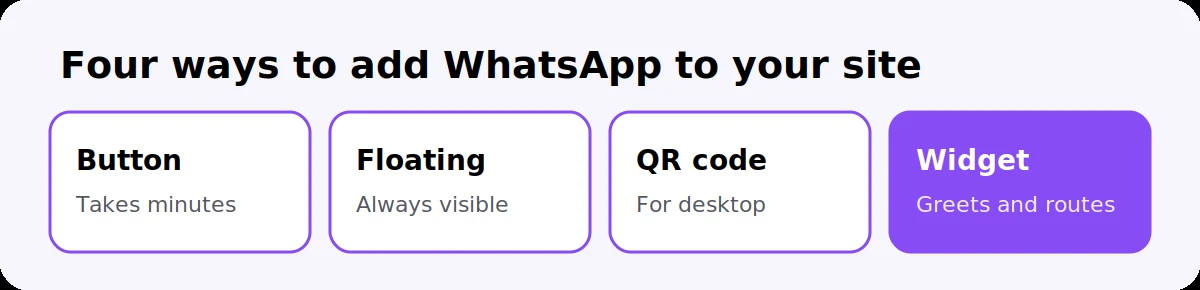
Four options, from simplest to most complete:
Option | What the visitor sees | Best for |
|---|---|---|
A link or button | A “Chat on WhatsApp” button that opens WhatsApp | Every site; takes minutes |
A floating button | A button that stays in the corner of every page | Sites where visitors browse several pages |
A QR code | A code desktop visitors scan with their phone | Desktop visitors, printed materials |
A chat widget from your WhatsApp provider | A small chat panel that hands over to WhatsApp, often with a greeting | Businesses that want greetings, routing and tracking |
All four rely on the same click-to-chat link underneath. Start with the link, then add the rest as you need them.

Use WhatsApp’s official format, https://wa.me/ followed by your number.
Write your number in full international format. Start with the country code, then the number, with no plus sign, leading zero, spaces, brackets or dashes. A Dubai mobile, 050 123 4567, becomes 971501234567. A Riyadh mobile, 050 123 4567, becomes 966501234567.
Build the link: https://wa.me/971501234567
Add a pre-filled message (optional). Add ?text= followed by your message, with spaces written as %20: https://wa.me/971501234567?text=Hi%2C%20I%27m%20interested%20in%20renting%20a%20car. The message appears in the visitor’s chat box, ready to send and still editable.
Test it on a phone and on a computer. On a computer, the link opens WhatsApp Web or the desktop app.
Messages in Arabic work too. Your website builder or any free URL encoder converts the Arabic text into the right format for the link.
Paste the link into a button. Every website builder, including Framer, WordPress, Webflow, Wix and Shopify, lets you link a button to a URL, so most businesses never need code.
If you or your developer prefer code, this is a simple button:
And this keeps the button floating in the bottom corner of every page:
A few details make the button work better:
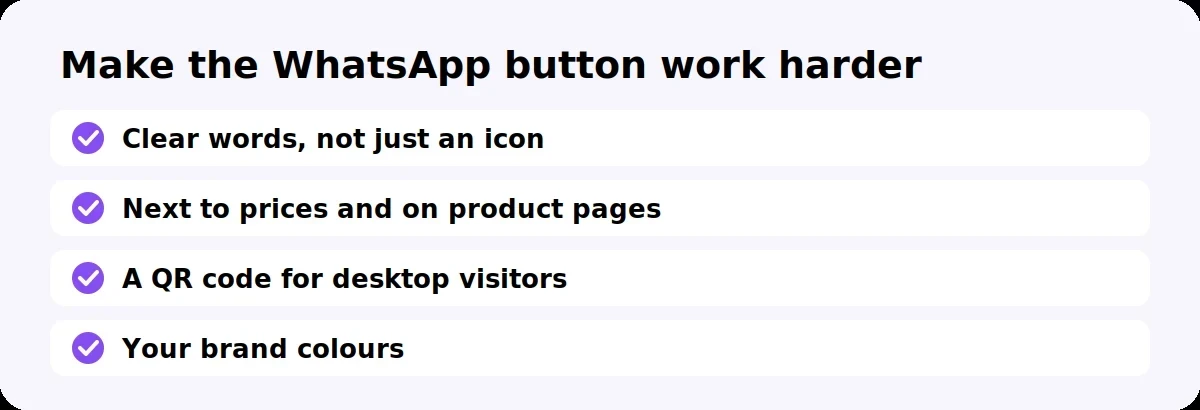
Use clear words such as “Chat on WhatsApp” rather than an icon alone, so every visitor knows what happens when they tap.
Put it where questions arise: next to prices, on product and service pages, and on the contact page.
Show a QR code on desktop. Many desktop visitors would rather continue on their phone.
Use your brand colours for the button, and avoid copying WhatsApp’s logo or colours closely.

Give each page its own pre-filled message. A visitor who taps the button on your Land Cruiser page sends “Hi, I’m interested in the Land Cruiser”, and you know exactly where the chat began without asking.
This matters most when you run ads to your website. Compare the pre-filled messages that arrive each week, and you can see which pages and campaigns bring real conversations.
On the WhatsApp Business API, you can go further:
Reply instantly. The first message triggers an automatic greeting, even after hours.
Qualify the lead with two or three button questions, such as dates and budget.
Assign the chat to the right salesperson or branch, based on the page or the answers.
Record the lead in a Google Sheet or CRM with its source.
Our guide to the 5-minute follow-up system explains how to set these up.

Use a business number the company owns, never a salesperson’s personal number. If that person leaves, every customer who contacts you through the website goes with them.
One main number for the whole website works for most businesses. Route chats to the right person behind the scenes with a team inbox.
One number per branch suits businesses with branches in different cities or countries. Link each branch page to its own number.
A short link hides the number. The WhatsApp Business app can create a link in the format wa.me/message/ followed by a code, so your number does not appear in the link itself.
Our guide on managing multiple WhatsApp numbers in one dashboard covers branch and team setups in detail.
The button uses a company-owned business number, not a personal one
The number is in international format with no plus sign, zero, spaces or dashes
Each key page has its own pre-filled message, so you know where chats come from
The button says “Chat on WhatsApp”, not just an icon
It appears next to prices, on product or service pages and on the contact page
Desktop visitors see a QR code
You have tested the link on a phone and on a computer
Someone answers website chats quickly, or an automatic greeting replies after hours
New website leads are recorded in a sheet or CRM
How do I add WhatsApp chat to my website?
Create a click-to-chat link in the format https://wa.me/ followed by your number in international format, then link a “Chat on WhatsApp” button to it. Most website builders let you do this without code.
What is a WhatsApp click-to-chat link?
It is WhatsApp’s official link, https://wa.me/ followed by a phone number, which opens a chat with that number without saving it as a contact. You can add ?text= to pre-fill a message.
Can I add a WhatsApp button to my website for free?
Yes. Click-to-chat links and buttons are free. You only pay if you use the WhatsApp Business API to reply as a team or automate, where Meta charges for some messages your business sends.
How do I add a pre-filled message to a WhatsApp link?
Add ?text= after the number, followed by your message with spaces written as %20, for example https://wa.me/971501234567?text=Hi%20there. The visitor can still edit it before sending.
Does the WhatsApp button work on desktop?
Yes. On a computer, the link opens WhatsApp Web or the WhatsApp desktop app. Showing a QR code on desktop also lets visitors continue on their phone.
Can I hide my phone number in the WhatsApp link?
Yes. The WhatsApp Business app can create a short link in the format wa.me/message/ followed by a code, so your number does not appear in the link.
FlowFlex is an official Meta Business Partner that helps GCC businesses answer every website chat on the WhatsApp Business API. Each chat gets an instant greeting, qualifying questions and a salesperson, and every lead is recorded with the page it came from.
Start your 14-day free trial or message us on WhatsApp to set it up on your site.